

- Monitor quality continuously across all production traffic
- Catch regressions immediately when they occur
- Evaluate at scale without manual intervention
- Get insights into real user interactions and edge cases
Create scoring automation rules
Online scoring automation rules are defined at the project level and specify which functions run, which logs they evaluate, and how Braintrust writes the resulting scores.- UI
- SDK
In the Braintrust UI, there are various ways to create a scoring automation rule:
- Project settings: Go to Settings > Automations and click + Automation. See Manage projects for more details.
- Scorer setup: When creating or editing a scorer, click Automations and select an existing scoring automation rule or create a new one. This workflow allows you to configure both the scorer and its automation rules together. See Write scorers for more details.
- Scorer testing: When testing a scorer with logs in the Run section, filter logs to find relevant examples, then click Automations to create a new online scoring automation rule with filters automatically prepopulated from your current log filters. This enables rapid iteration from logs to scoring automation rules. See Test with logs for more details.
- Scorers list: On the Scorers page, select one or more scorers and click Create automation to open the creation dialog with the selected scorers pre-filled. See Write scorers for more details.
Configuration parameters
Scoring automation rules have common settings and settings specific to the selected scope (trace, span, or group). First, configure the common settings:
Then choose a Scope and configure the remaining settings:
- Trace
- Span
- Group
A trace-scoped rule runs scorers on one complete trace, including nested spans. Choose trace scope for an interaction captured in a single trace, such as a multi-step workflow.When a trace-scoped rule scores a trace, the trace tree shows a span associated with the scoring automation. Scorer runs appear as score spans under that automation span.
Scorers run by a trace-scoped automation rule can inspect the full trace in the following ways:
- In LLM-as-a-judge scorers, the prompt can reference thread variables populated from the trace, such as
{{thread}}. - Custom code scorers receive the
traceargument and can inspect spans withtrace.getSpans()or the rendered conversation withtrace.getThread().
Use scorers from another project
Scoring rules can run scorers and classifiers defined in other projects, so you can maintain a shared library of scorers in a central project and apply it across your organization. To make another project’s scorers available in the scorer dropdown:- Grant the user or service token read access to the project where the scorers are defined, through a permission group. Organization-wide read access is not required. For least-privilege access, scope the group to read only that project’s prompts, where scorers are stored. See custom permission groups.
- In the scorer dropdown, select the scorer under the Other projects group. The same grouping and project-level read requirement apply in the playground.
Read access lets you select a cross-project scorer. Running it is separate: the automation’s service token or API key must also have read access to the logs it scores, which can be in a different project. See Missing scores if a cross-project rule does not produce results.
View scoring results
Scores appear automatically in your logs. The trace tree shows the score value, the function that generated it, and a score span with the scorer output and metadata. For span-scoped rules, Braintrust adds the score span as a child of the matched span. For trace- and group-scoped rules, Braintrust adds a scoring automation span to the trace, with score spans underneath it.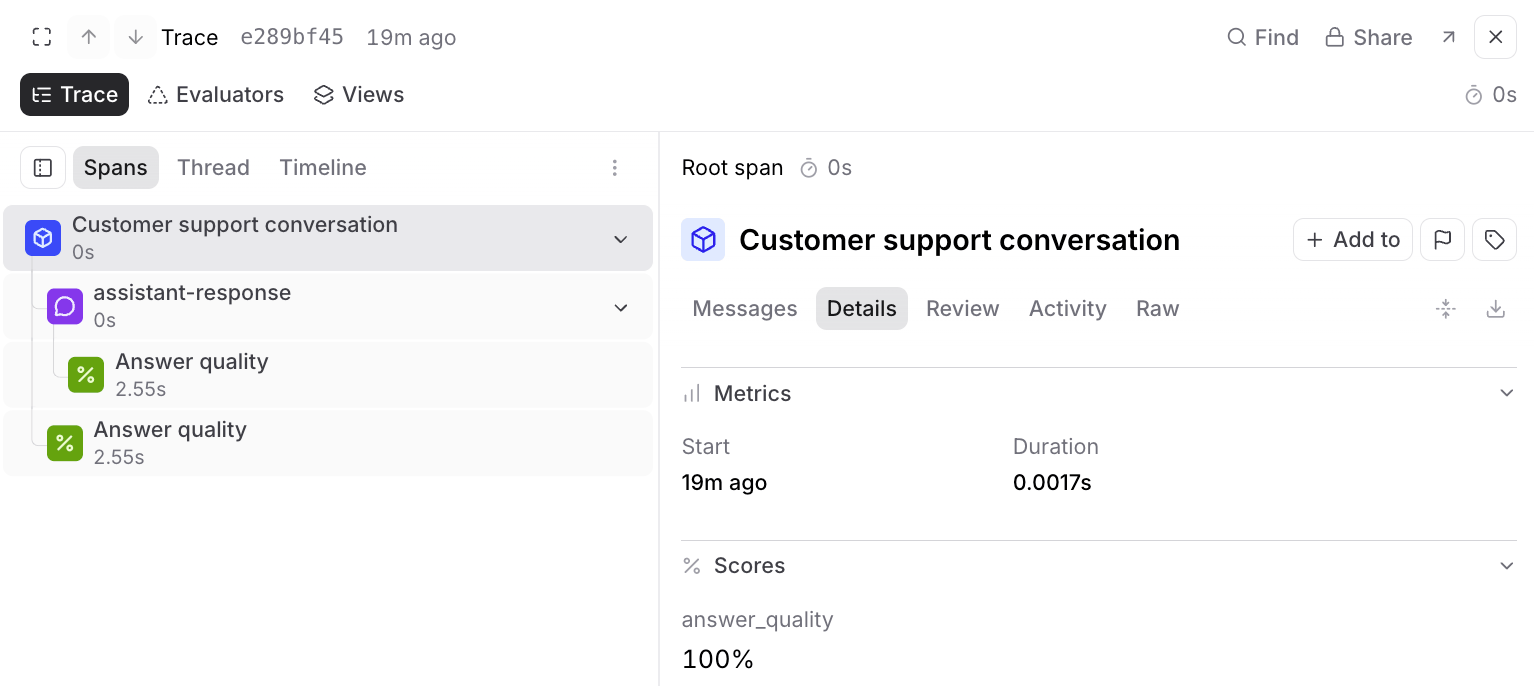
This example shows a span-scoped score. Trace-scoped and group-scoped rules add a scoring automation span to the trace, with score spans underneath it.
Inspect grouped score metadata
To see which traces a grouped score used, inspect the scoring automation span’smetadata.grouped_scoring object:
context_root_span_idslists the traces included as context.triggering_root_span_ididentifies the trace whose arrival triggered grouped scoring.target_root_span_ididentifies the trace that received the score.
Score manually
To apply scorers to historical logs:- Specific logs: Select logs and use Score to apply chosen scorers
- Individual logs: Open any log and use Score in the trace view
- Filtered logs: Filter logs to narrow your view, then use Score existing logs under Automations to apply scorers to recent logs matching your filters
Pause an automation
Pause a scoring automation rule to stop it from scoring new traces while keeping its scorers, filters, and scope intact. For self-hosted deployments, pausing requires data plane v2.11.0 or later.- UI
- API
- Go to Settings > Automations.
- Click to edit the rule.
- Turn off Enabled.
- Click Save.
Rewind an automation
If you need to re-score traces from a specific point in time, you can rewind an online scoring automation. This is useful if you’ve updated a scorer and want to re-evaluate recent traces with the new version, or if you need to fix scoring that was paused or errored.Automations in every scope can be rewound. Rewinding requires data plane v2.3.0 or later, and group scope itself requires data plane v2.8.0 or later.
- Go to Settings > Automations.
- Click to edit the automation.
- Under Processing status, select a start time using the time range selector. Choose a preset (such as 24 hours) or enter a custom date and time.
- Click Re-process traces to begin re-processing from that point forward.
A span-scoped rule shows no processing status until its first rewind. Until then, Processing status has no time range selector or Re-process traces button. To start the first rewind for a span-scoped rule, use the multi-select control below.
- On the Automations page, select one or more scoring rules using the row checkboxes.
- In the Re-process traces section below the table, select a start time, then choose Local or UTC from the adjacent dropdown to control how that time is interpreted. To copy the resolved timestamp, click .
- Click Re-process traces to apply the rewind to all selected rules.
Best practices
Choose sampling rates wisely: High-volume applications should use lower rates (1-10%) to manage costs. Low-volume or critical applications can use higher rates (50-100%) for comprehensive coverage. Complement offline evaluation: Use online scoring to validate experiment results in production, monitor deployed changes, and identify new test cases from real interactions. Consider scorer costs: LLM-as-a-judge scorers have higher latency and costs than code-based alternatives. Factor this into your sampling rate decisions. Choose the right scope: Use span scope for evaluating individual operations or outputs. Use trace scope when your scorer needs the full execution context of one trace, such as overall workflow completion. Use group scope when the interaction you want to evaluate spans several traces, such as a session or multi-turn conversation.Retries and failure handling
Online scoring includes automatic retry behavior so transient failures don’t cause silent gaps in your scores:For self-hosted deployments, per-scorer retries and partial-failure handling require data plane v2.4.0 or later, and batch-level retries require data plane v2.5.0 or later.
- Batch-level retries: Braintrust retries scoring batches on transient HTTP failures with exponential backoff.
- Per-scorer retries: If a single scorer function fails on a batch, Braintrust retries that scorer independently. Other scorers in the same rule are unaffected.
- Partial-failure handling: Batches containing a mix of successful and failing rows still record scores for the rows that succeed.
- Repeated score spans: Each retry attempt appears as a separate score span on the trace, so repeated spans with the same error indicate the scorer is failing consistently rather than intermittently.
- Payloads that exceed the scorer runtime’s request-size limit. Reduce the size of the span fields the scorer receives (for example, truncate large inputs or outputs before logging), or use Filter to scope the scorer to a narrower span.
- Unavailable or misconfigured models. See Automation scorer failures due to Gemini gateway routing errors for an example.
- Missing permissions on the API key or service token running the scorer.
Troubleshoot issues
Low or inconsistent scores
- Review scorer logic to ensure criteria match expectations.
- Verify scorers receive the expected data structure.
- Test scorer behavior on controlled inputs.
- Make LLM-as-a-judge criteria more specific.
Missing scores
- Confirm the rule’s Status is Active in Settings > Automations. A paused rule doesn’t score new traces, and resuming it doesn’t score the traces that arrived while it was paused.
- Check span-scope Filter settings to ensure correct span types are targeted, such as root spans or specific span names.
- Verify logs pass the SQL filter clause. Confirm your logs’ data (input, output, metadata) matches the filter criteria.
- Confirm sampling rate isn’t too low for your traffic volume.
- For trace-scoped rules, confirm the trace has gone idle. A trace that keeps receiving spans is not scored until no new spans arrive for the configured Idle timeout (seconds).
- Ensure API key or service token has proper permissions (Read and Update on project and project logs). If using scorers from other projects, ensure permissions on those projects as well.
- Verify span data is complete when
span.end()is called:- Online scoring triggers when
span.end()is called (or automatically when usingwrapTraced()in TypeScript or@traceddecorator in Python) - The SQL filter clause evaluates only the data present at the moment
span.end()is called - If a span is updated after calling
end()(e.g., logging output after ending), the update won’t be evaluated by the filter. For example, if your filter requiresoutput IS NOT NULLbut output is logged afterspan.end(), the span won’t be scored
- Online scoring triggers when
Missing grouped scores
If grouped scores are not landing on your traces as expected, check the following:- Confirm the rule was in place before the activity you expect it to score. Braintrust does not backfill group scores when you create a rule. However, if a group receives a new matching trace after you create the rule, that trace can trigger grouped scoring, with earlier traces in the group included as context according to Group interval and Maximum traces. To backfill group scores, rewind the automation.
- Check where grouped scores land. With Every trace in the group, Braintrust scores the matching trace that triggered the run, using earlier traces in the group as context. With First trace in the group, Braintrust writes the score to the earliest trace still included in the group.
- Check that the filter can match the group’s last trace. Under First trace in the group, a rule whose filter excludes the trace that ends the conversation does not run. Either switch to Every trace in the group, or write the filter so the final trace can match.
- Treat the filter as a trigger condition, not a membership condition. A matching trace can trigger scoring, but the scorer still receives every trace that shares the grouping key within the group’s window.
- Confirm every turn carries the grouping key. A trace is left out of the group when the key is missing, when its value is an object or an array, or when spans within that trace disagree about its value.
- Expect fewer scored traces than traces. Under First trace in the group, one trace per group carries a score, not one per turn.
Next steps
- Create dashboards to monitor score trends
- Build datasets from scored production traces
- Run experiments to validate scoring criteria
- Learn about creating scorers